
Enrollment & Registration

How to Self-Enroll & Select Subject Schedules

Step-by-step walkthrough for continuing and irregular students to select academic periods, encode course sections, resolve schedule conflicts, inspect tuition fee assessments, and submit official self-enrollment.

Roles: Continuing Students, Irregular Students, Returning Students·Last updated: August 25, 2026

Before You Begin (Prerequisites)

  • Active Student Portal Account (@gbox.ncf.edu.ph / Student ID)
  • Settled Previous Account Balance (within University tolerance)
  • Active Enrollment Period Window for your Program and Year Level

Step-by-Step Instructions

1

Open Self-Enrollment in Student Portal

Log in to your Student Portal (https://student-portal.sims.ncf.edu.ph), click 'Enrollment' in the sidebar menu, and select your target Academic Year and Semester from the period selector dropdown. The system automatically validates your eligibility and active enrollment schedule.
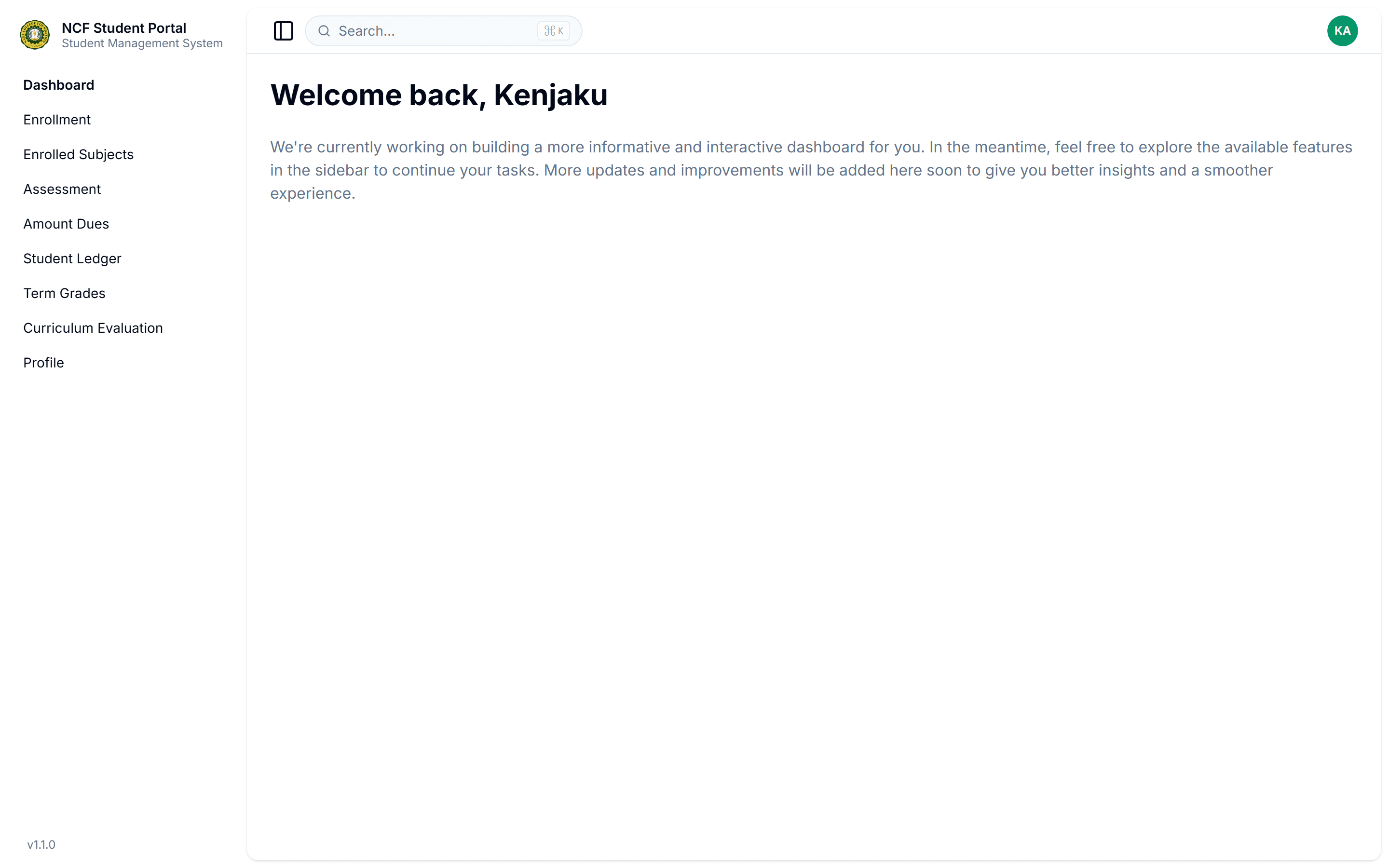
Open Self-Enrollment in Student Portal
Zoom

Interface: Open Self-Enrollment in Student Portal

Note: If the page displays 'No active enrollment schedule found', check the University Academic Calendar for your specific department and year level schedule.
2

Browse Curriculum Offerings & Encode Subjects

Browse the offered course sections for your curriculum. For regular students, select your assigned block section to auto-populate recommended subjects. For irregular students, pick individual subject sections by reviewing class days, time slots, room assignments, and instructors.
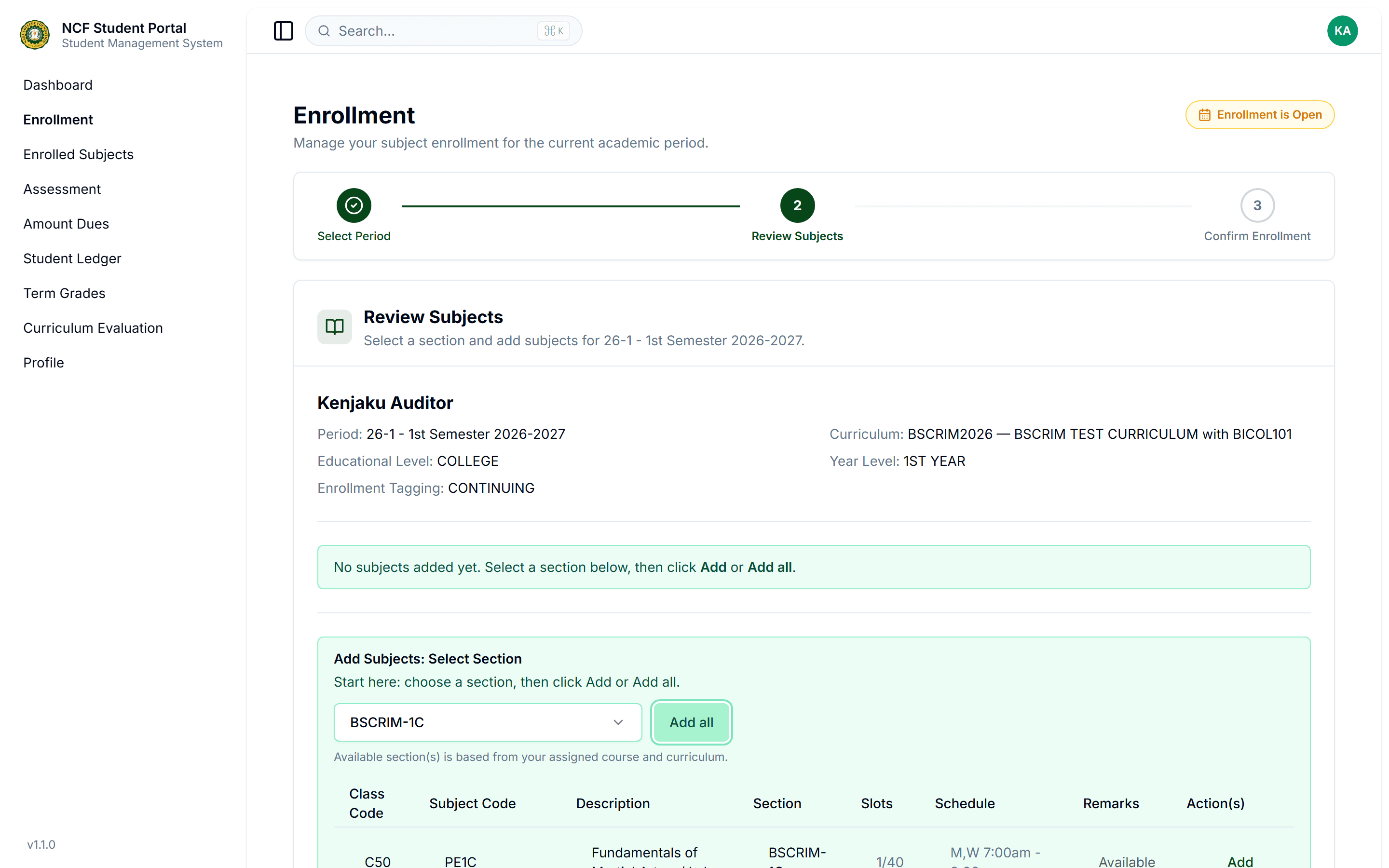
Browse Curriculum Offerings & Encode Subjects
Zoom

Interface: Browse Curriculum Offerings & Encode Subjects

Note: Watch out for red schedule conflict alerts. The system will prevent adding two classes with overlapping time slots.
3

Review Enrolled Units & Tuition Assessment Breakdown

Inspect the summary table of encoded subjects to verify total lecture and laboratory credit units. Check the preliminary financial breakdown showing tuition fees, laboratory fees, and mandatory miscellaneous charges.

Note: Verify all required major and general education subjects are accounted for before proceeding to final submission.
4

Confirm Enrollment & Download Assessment Slip

Click 'Confirm & Submit Enrollment'. Your subject reservations are officially locked and submitted to the Dean and Registrar. You can immediately generate and download your Official Assessment Slip (PDF) for payment reference.

Note: Keep a copy of your downloaded Assessment Slip to reference your payment schedule and installment due dates.

Important Business Rules & Invariants

Outstanding Balance Clearance Gate: Students with unsettled arrears from previous academic terms exceeding the university tolerance threshold are blocked from encoding subjects until cleared with the Accounting Cashier.
Automated Prerequisite Validation: The system enforces prerequisite checking against your academic transcript. Advanced subjects cannot be encoded if prerequisite courses are unpassed or missing.
Section Capacity & Time Conflict Checks: You cannot enroll in closed sections (0 available slots) or schedule classes with conflicting day/time intervals.
Enrollment Submission Lock: Once submitted, your encoded subject lineup is locked. Subsequent changes must be requested through the official Adding/Dropping process during the change-of-matriculation window.

Common Questions & Troubleshooting

This occurs if your department has not yet opened self-enrollment for your year level, or if the scheduled enrollment window has concluded. Refer to your Department Chair or the Registrar's announcement.