
Financials & Billing

How to View Tuition Assessment & Statement of Account (SOA)

Step-by-step walkthrough for students to inspect their itemized tuition fee breakdown, monitor periodic installment payment due dates, and audit real-time payment ledger transactions.

Roles: Enrolled Students, Continuing Students, Parents/Guardians·Last updated: August 25, 2026

Before You Begin (Prerequisites)

  • Active Student Portal Account (@gbox.ncf.edu.ph / Student ID)
  • Registered / Enrolled Subject Load in Active Academic Period

Step-by-Step Instructions

1

Open Financials in Student Portal Navigation

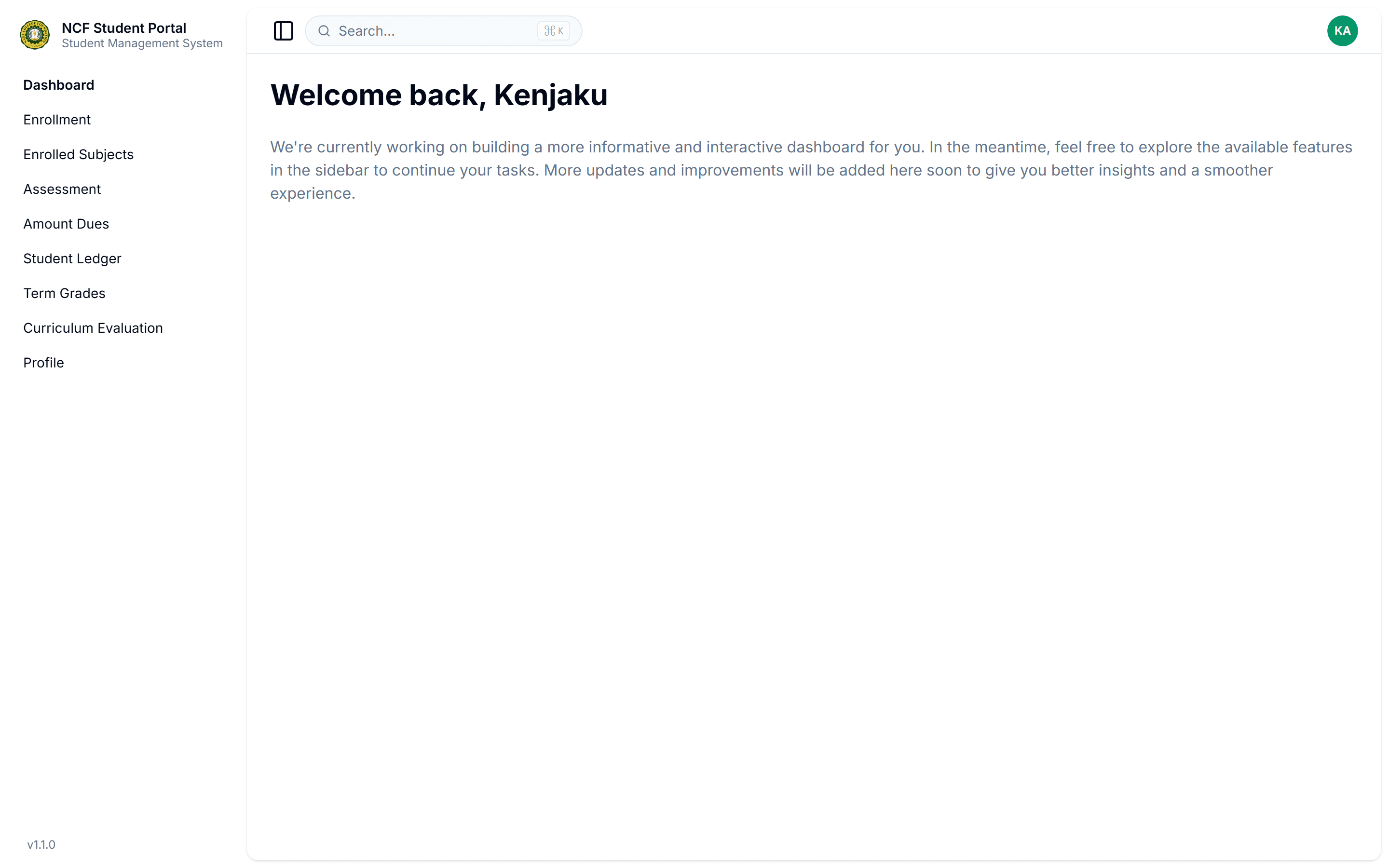
Sign in to your Student Portal (https://student-portal.sims.ncf.edu.ph) and access your financial tools ('Amount Dues', 'Assessment', 'Student Ledger') in the left navigation sidebar.
Open Financials in Student Portal Navigation
Zoom

Interface: Open Financials in Student Portal Navigation

Note: Keep track of your current semester code (e.g. 26-1 for 1st Semester 2026-2027) when reviewing account charges.
2

Check Active Period Balance & Amount Dues

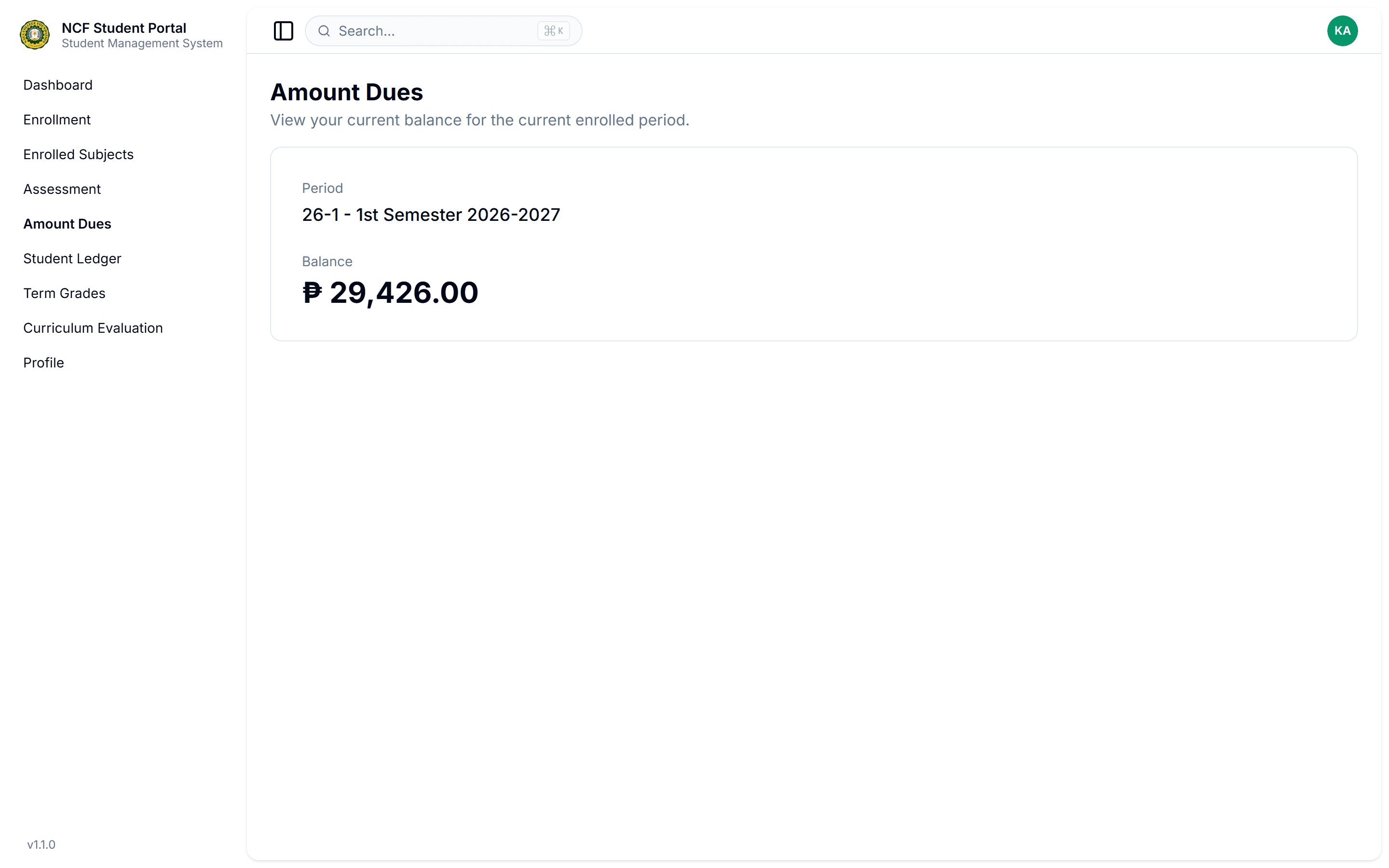
Click 'Amount Dues' in the sidebar to review your current enrolled academic period, current outstanding balance, and periodic payment summary.
Check Active Period Balance & Amount Dues
Zoom

Interface: Check Active Period Balance & Amount Dues

Note: The Amount Dues card gives you an instant snapshot of your net payable amount for the active enrollment period.
3

Inspect Itemized Tuition & Fee Breakdown

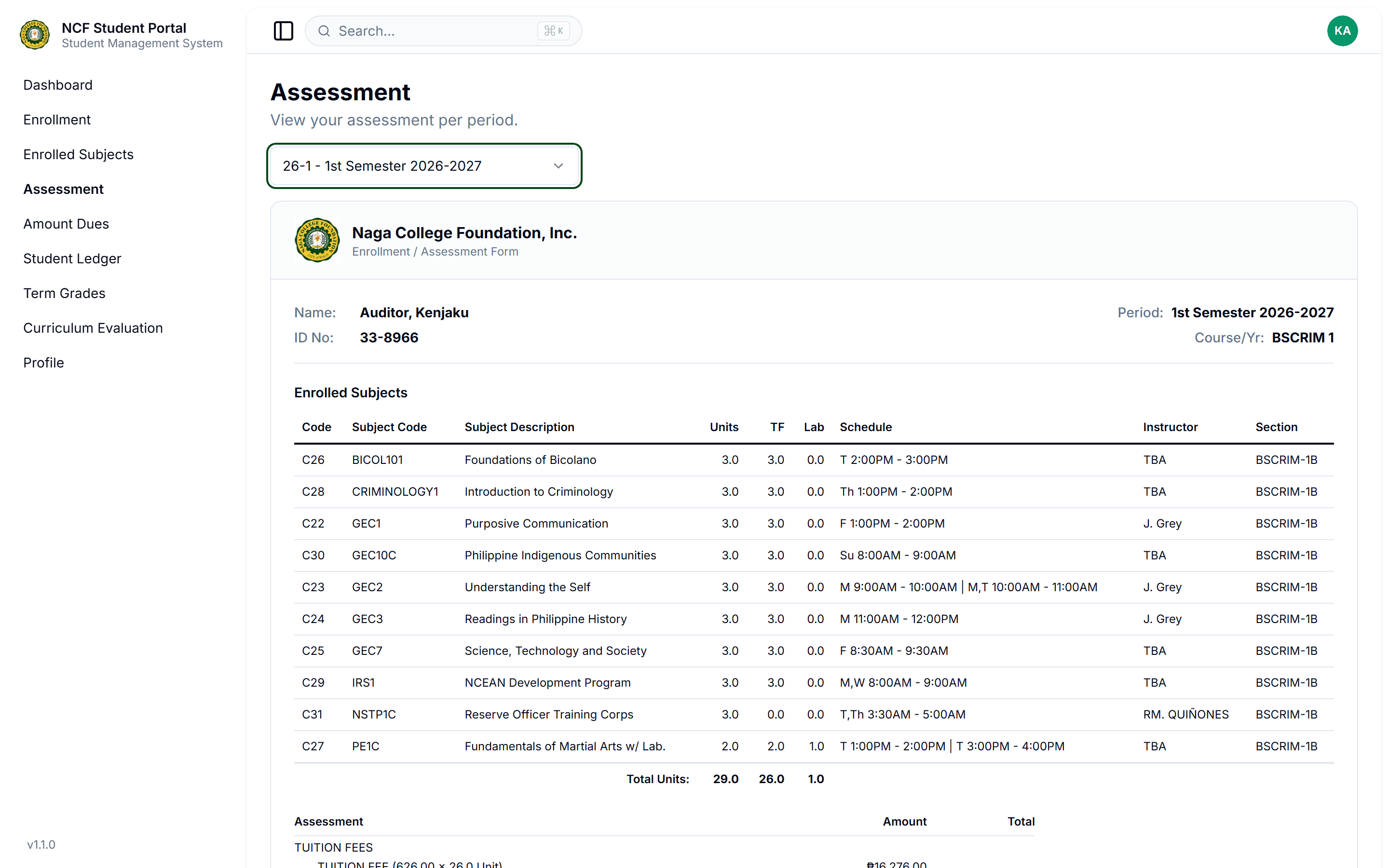
Click 'Assessment' to inspect categorized fee tables detailing Tuition Fees (per lecture and lab unit), Laboratory Fees, Mandatory Miscellaneous Fees, and Other Adjustments. Check the summary totals showing Gross Assessment, Discount/Scholarship Deductions, and Net Assessment Payable.
Inspect Itemized Tuition & Fee Breakdown
Zoom

Interface: Inspect Itemized Tuition & Fee Breakdown

Note: Any changes to your enrolled subject load during the adding/dropping period will automatically recalculate your total assessment.
4

Audit Official Student Ledger & Transaction History

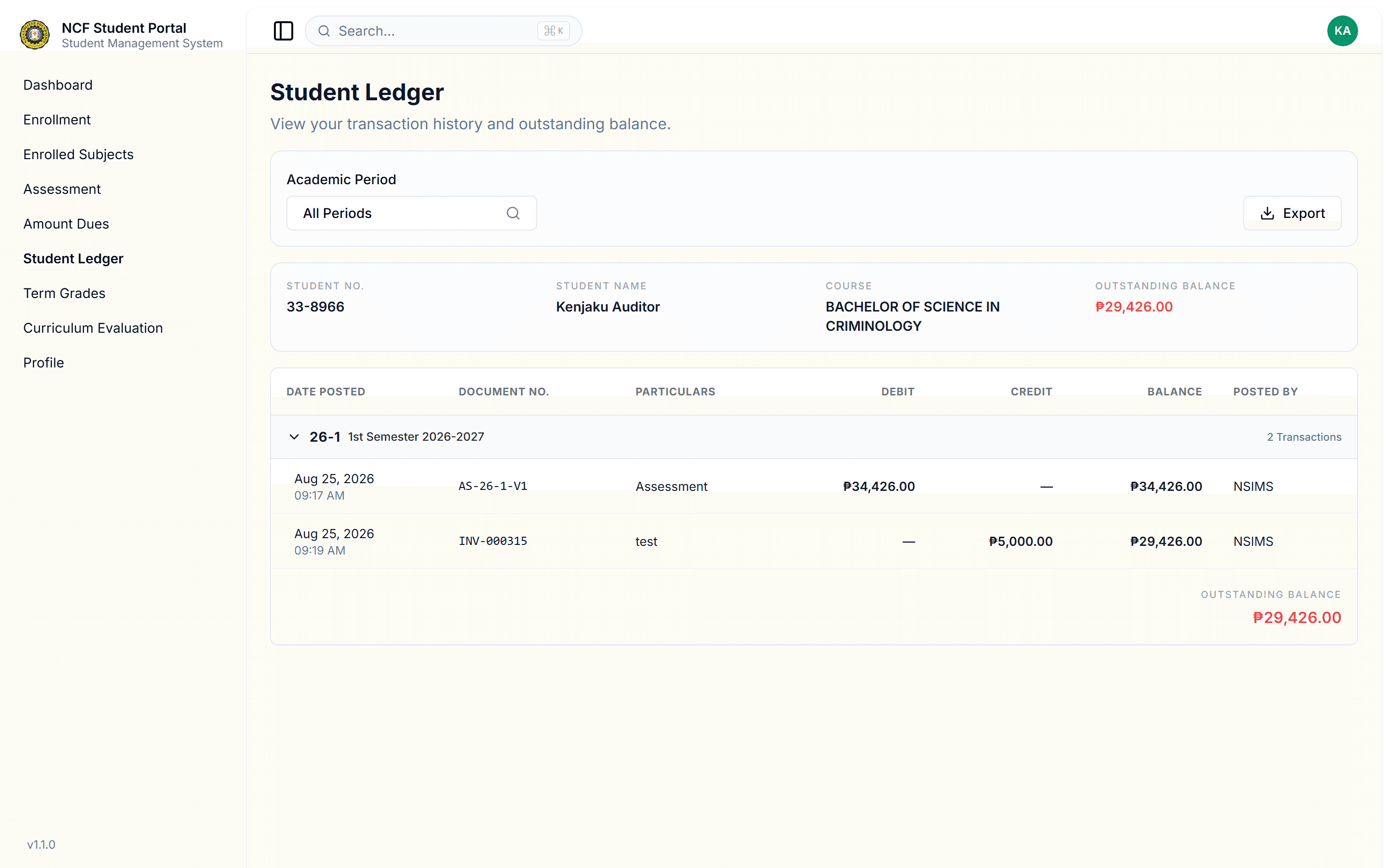
Click 'Student Ledger' in the sidebar to review your complete transaction history, including your Student Number, Registered Degree Program, posted Cashier payments, bank credits, Official Receipt (OR) numbers, and running balance.
Audit Official Student Ledger & Transaction History
Zoom

Interface: Audit Official Student Ledger & Transaction History

Note: Always retain your physical or digital Official Receipts (OR) issued by the Cashier for payment verification.

Important Business Rules & Invariants

Off-Campus Payment Verification Window: Payments made via bank deposit or online payment channels require 24 to 48 banking hours for manual accounting verification before reflecting in the student ledger.
Automated Assessment Recalculation: Adding, dropping, or withdrawing subject sections triggers automatic re-assessment of tuition and laboratory fees based on prevailing unit rates and withdrawal date policies.
Exam Permit Clearance Threshold: To secure examination clearances and view term grade reports, the required periodic installment balance must be settled on or before the specified cut-off dates.

Common Questions & Troubleshooting

Off-campus payments require manual accounting verification. Please allow 1–2 business days, or present your deposit slip/reference number to the Accounting Cashier Office.