
Analytics & Monitoring
Financial Management Dashboard & KPI Guide
Monitor daily revenue collections, date-range revenue trends, outstanding student receivables, and action queues.
Roles: Finance Officers, Accounting Staff, Cashier Supervisors·Last updated: August 25, 2026
Before You Begin (Prerequisites)
- Permission (acct-payments:read)
Step-by-Step Instructions
1
Access Dashboard
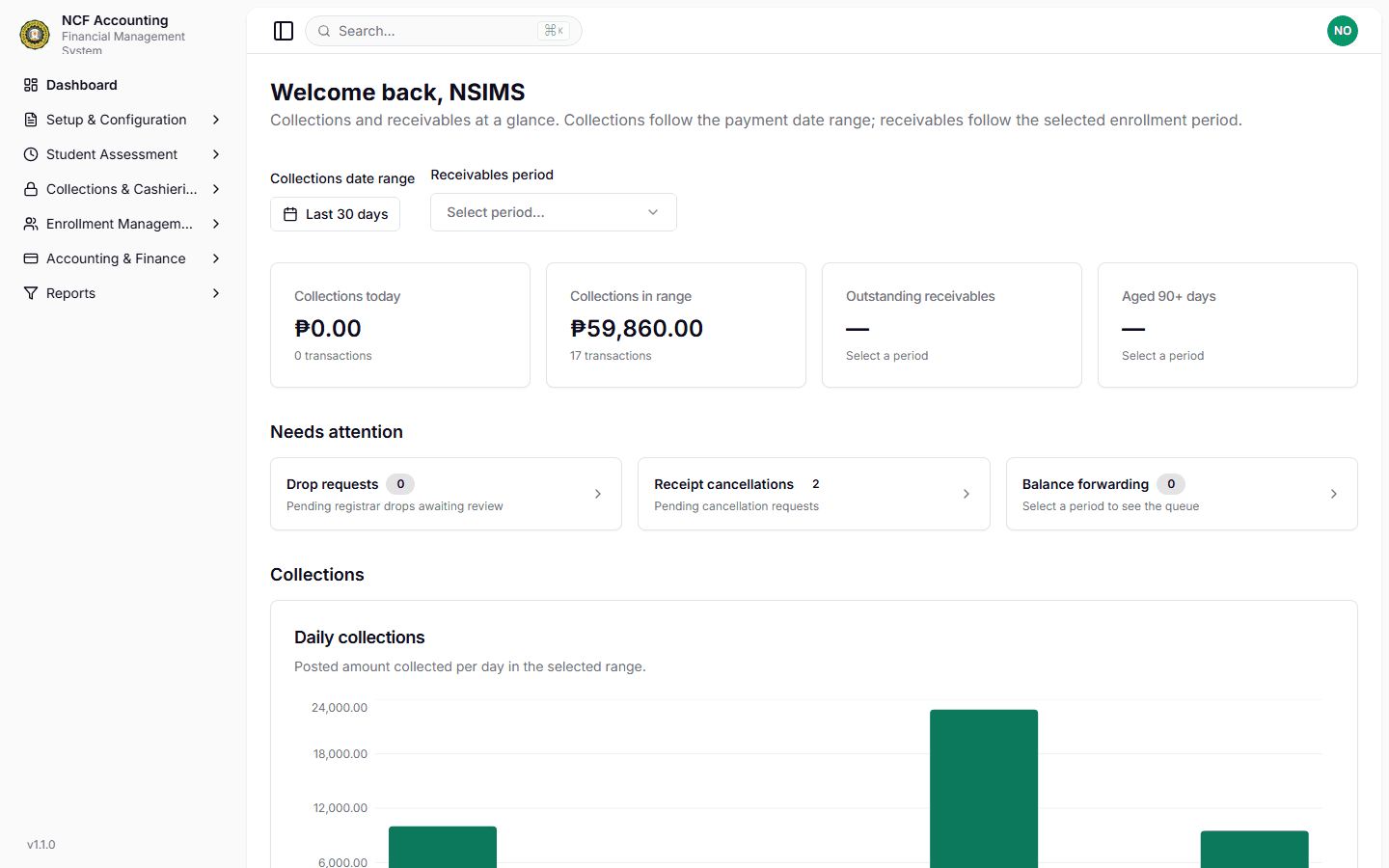
Log in to accounting.sims.ncf.edu.ph and open the Financial Dashboard (/dashboard).
Zoom
Interface: Access Dashboard
2
Filter Collections by Date
Use the Date Range Picker to view today's collections or custom period revenue.
3
Filter Receivables by Academic Period
Select the enrollment period to inspect total unpaid receivables and aging breakdown (0-30, 31-60, 90+ days).
4
Process Action Queues
Click on queue cards (Drop Requests, Receipt Cancellations, Balance Forwarding) to open clearance drawers.
Important Business Rules & Invariants
Two Filter Axes: Collections follow calendar payment dates; Receivables follow the selected Academic Enrollment Period.
Common Questions & Troubleshooting
You must select an enrollment period in the 'Receivables Period' dropdown first.
On This Page