
Enrollment & Registration

How to View Enrolled Subjects & Download Certificate of Enrollment (COE)

Step-by-step walkthrough for students to inspect their officially enrolled subject schedules per academic period, review classroom assignments and instructors, and generate/download their official Certificate of Enrollment (COE).

Roles: Enrolled Students, Continuing Students, Irregular Students·Last updated: August 25, 2026

Before You Begin (Prerequisites)

  • Active Student Portal Account (@gbox.ncf.edu.ph / Student ID)
  • Validated Enrollment in at least one Academic Period

Step-by-Step Instructions

1

Open Enrolled Subjects in Navigation

Sign in to the Student Portal (https://student-portal.sims.ncf.edu.ph) and click 'Enrolled Subjects' in the left navigation sidebar. Use the period selector at the top to select your target Academic Year and Semester.
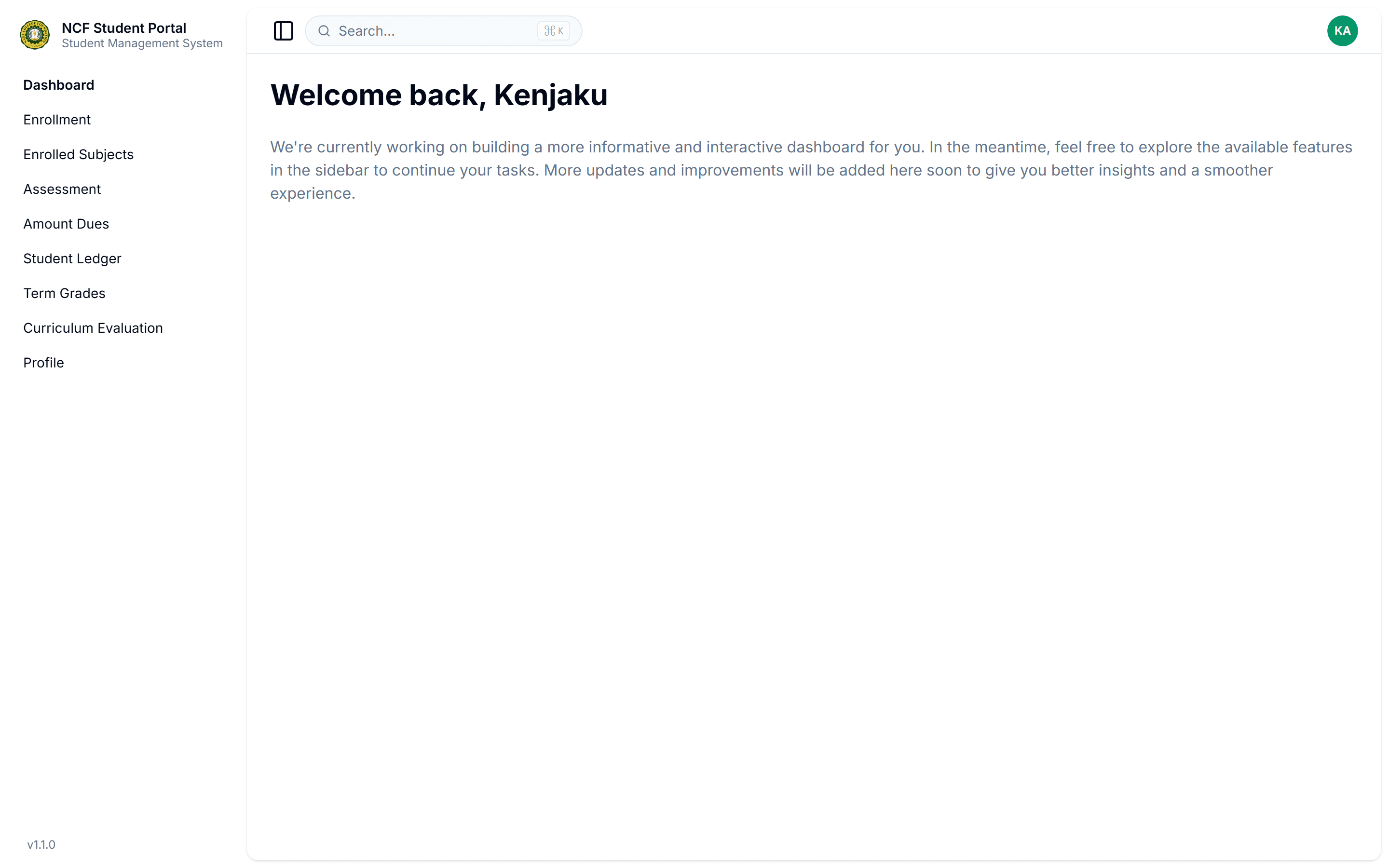
Open Enrolled Subjects in Navigation
Zoom

Interface: Open Enrolled Subjects in Navigation

Note: You can switch between past and current semesters using the period dropdown to review your complete academic registration history.
2

Inspect Schedule, Room & Instructor Allocations

Review the interactive data grid containing your registered subjects. Inspect Class Codes, Subject Codes, Descriptive Titles, Credit Units, Meeting Days & Times, Room Assignments, Section Codes, and Faculty Instructor names.
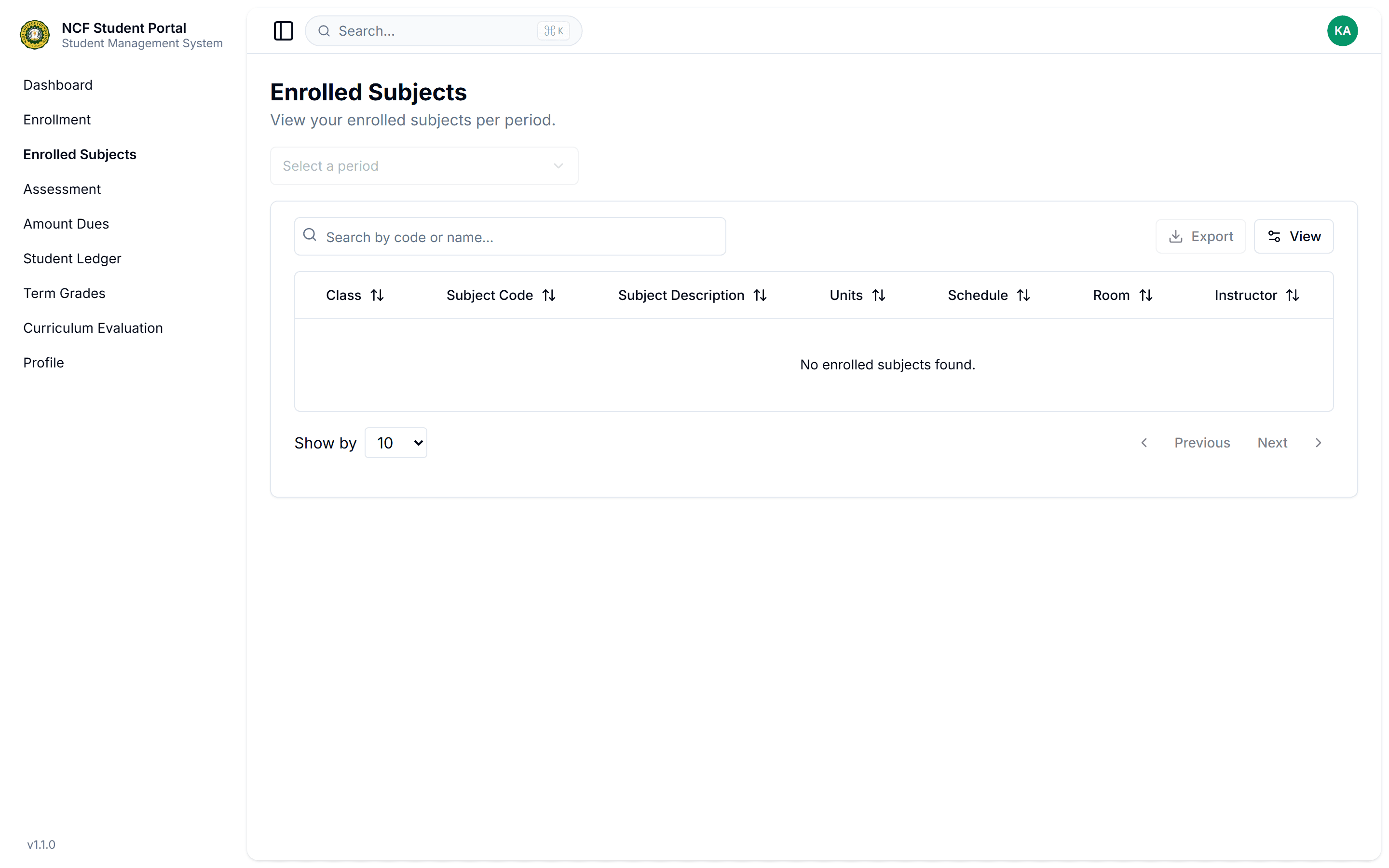
Inspect Schedule, Room & Instructor Allocations
Zoom

Interface: Inspect Schedule, Room & Instructor Allocations

Note: If a room or instructor shows as 'TBA', the Department Chair has not yet finalized room logistics or faculty loading for that section.
3

Export or Print Certificate of Enrollment (COE)

Click the 'Export' or 'Print Certificate of Enrollment (COE)' button in the upper toolbar. The system generates an official PDF Certificate of Enrollment detailing all validated subjects, total credit units, and institutional verification metadata.

Note: The printed COE serves as official proof of enrollment for scholarship applications, CHED UniFAST grants, student discounts, and health insurance.

Important Business Rules & Invariants

Official Validation Requirement: Subjects only appear in the Enrolled Subjects table once your registration is officially approved by the College Dean/Registrar and initial accounting clearance is confirmed.
Real-Time Room & Schedule Synchronization: Any classroom reallocations or instructor assignments updated by the Dean in the Core Academic Portal reflect immediately in your student schedule view.
Dropped Subject Status Display: Subjects officially dropped during the change-of-matriculation window are marked with their corresponding withdrawal status.

Common Questions & Troubleshooting

Ensure you have selected the correct Academic Period from the dropdown. If you just registered online, your application may still be pending Dean approval or Cashier downpayment validation.