
New Student: How to Register & Apply for Online Admission
Complete 4-step walkthrough for incoming freshmen and transferees completing initial applicant registration, biographical data, program selection, and email OTP verification.
Before You Begin (Prerequisites)
- Personal Email Address (for OTP Verification)
- PSA Birth Certificate
- SHS Form 138 / Report Card or Transcript of Records
- Learner Reference Number (LRN, if applicable)
Step-by-Step Instructions
Start Registration (Schedule & Registrant Type)
Navigate to the registration portal (/student-registration). Select the open 'Enrollment Schedule' from the dropdown, choose your applicant card ('I'm a Student' for self-registration or 'I'm a Parent/Guardian' for assisted registration), and check the mandatory confirmation box: 'I confirm that this applicant has never attended or enrolled in Naga College Foundation before'. Click 'Next'.
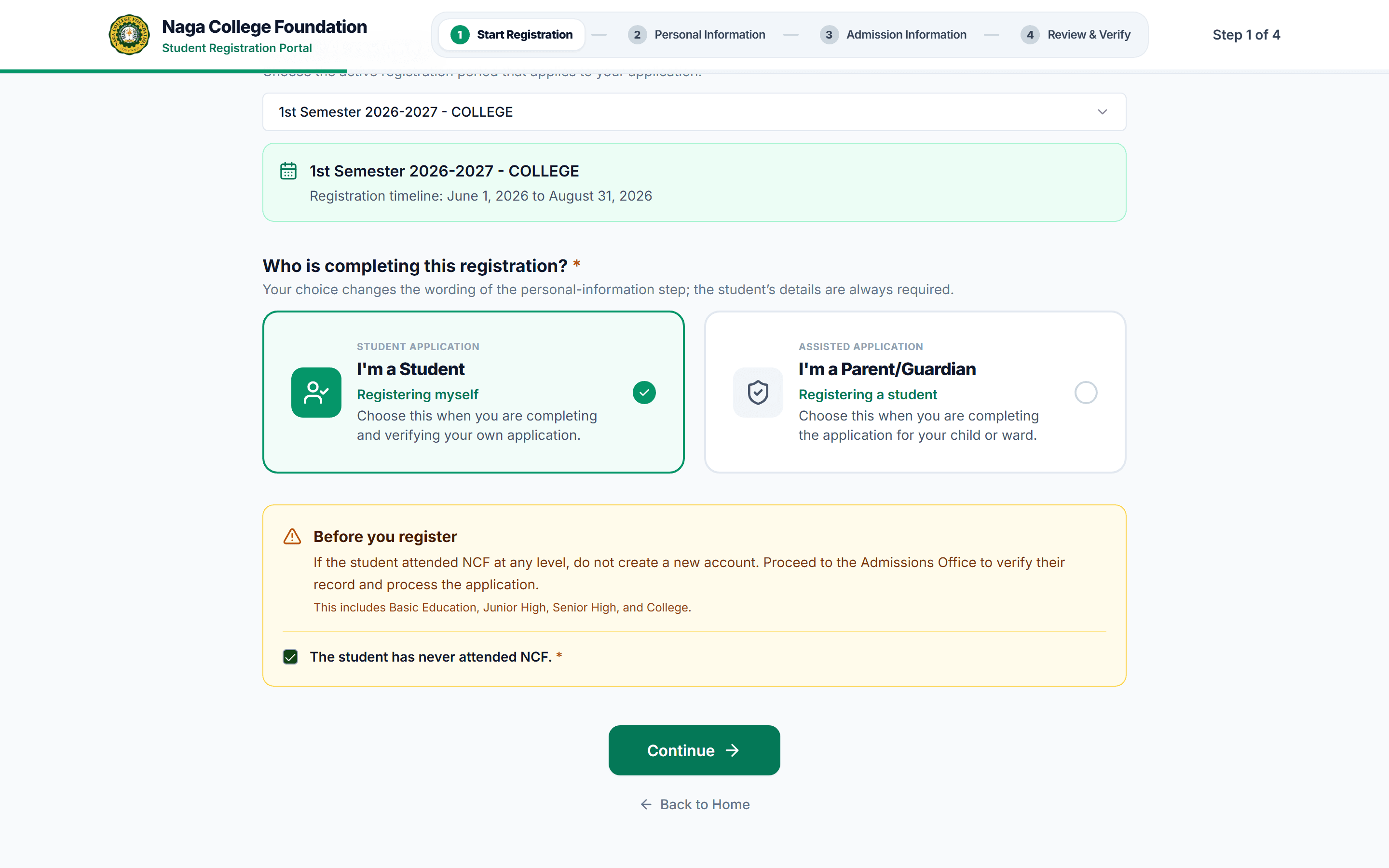
Interface: Start Registration (Schedule & Registrant Type)
Personal Information & Complete Address
Fill in your complete legal name (First, Middle, Last, Suffix), Birthdate, Gender, Civil Status, Nationality, Religion, Mobile Contact Number, and valid Personal Email Address. In the address section, select your Region, Province, City/Municipality, Barangay, House/Street Number, and Zip Code. Click 'Next'.
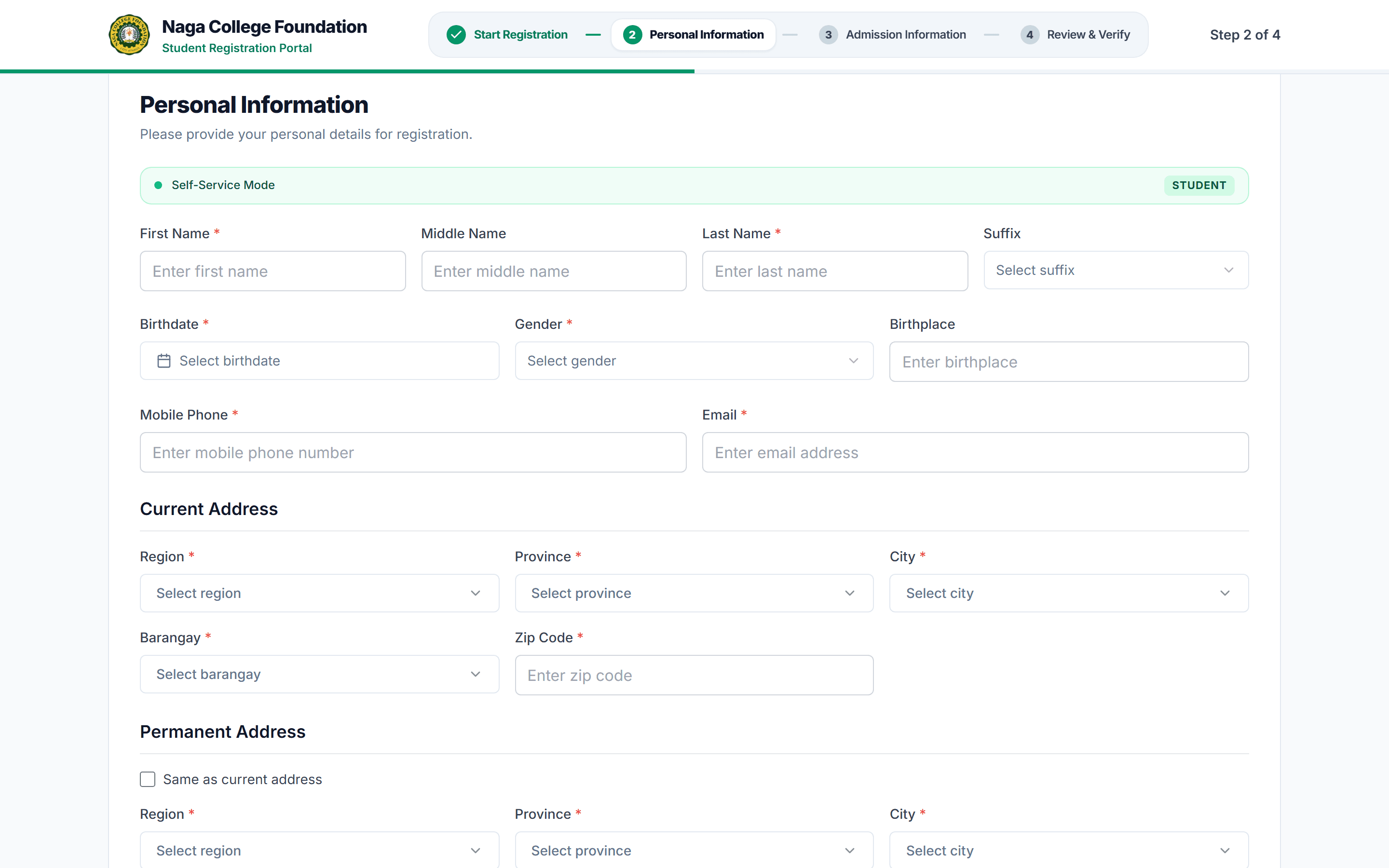
Interface: Personal Information & Complete Address
Admission Information & Program Choice
Select your Entry Classification (Freshman or Transferee) and choose your target College Degree Program (e.g. BS Information Technology, BS Nursing, BS Accountancy). Search and select your Previous School from the master directory, input your Last School Year Attended, and provide your 12-digit Learner Reference Number (LRN). Click 'Next'.
Review Summary, Verify Email OTP & Finalize
Review all summary cards to verify that your personal, address, and academic choices are accurate. Click 'Send Verification Code' to receive a 6-digit OTP in your email inbox, enter the code in the verification input, and click 'Submit Application'. Save and screenshot the generated Application Reference Number (e.g. APP-2026-XXXXX).