
How to View Assigned Teaching Loads & Class Rosters
Step-by-step walkthrough for faculty members and department chairs to access assigned course sections, view real-time enrolled student masterlists, verify merged class sections, and export printable attendance sheets.
Before You Begin (Prerequisites)
- Active Faculty Portal Account (@ncf.edu.ph / Institutional Employee ID)
- Approved Teaching Load & Class Schedule Assignment for the Academic Term
Step-by-Step Instructions
Sign In & Navigate to Class List
Open the Faculty Portal (https://faculty-portal.sims.ncf.edu.ph) and sign in using your official institutional email (@ncf.edu.ph) and password. Click 'Class List' in the left navigation sidebar.
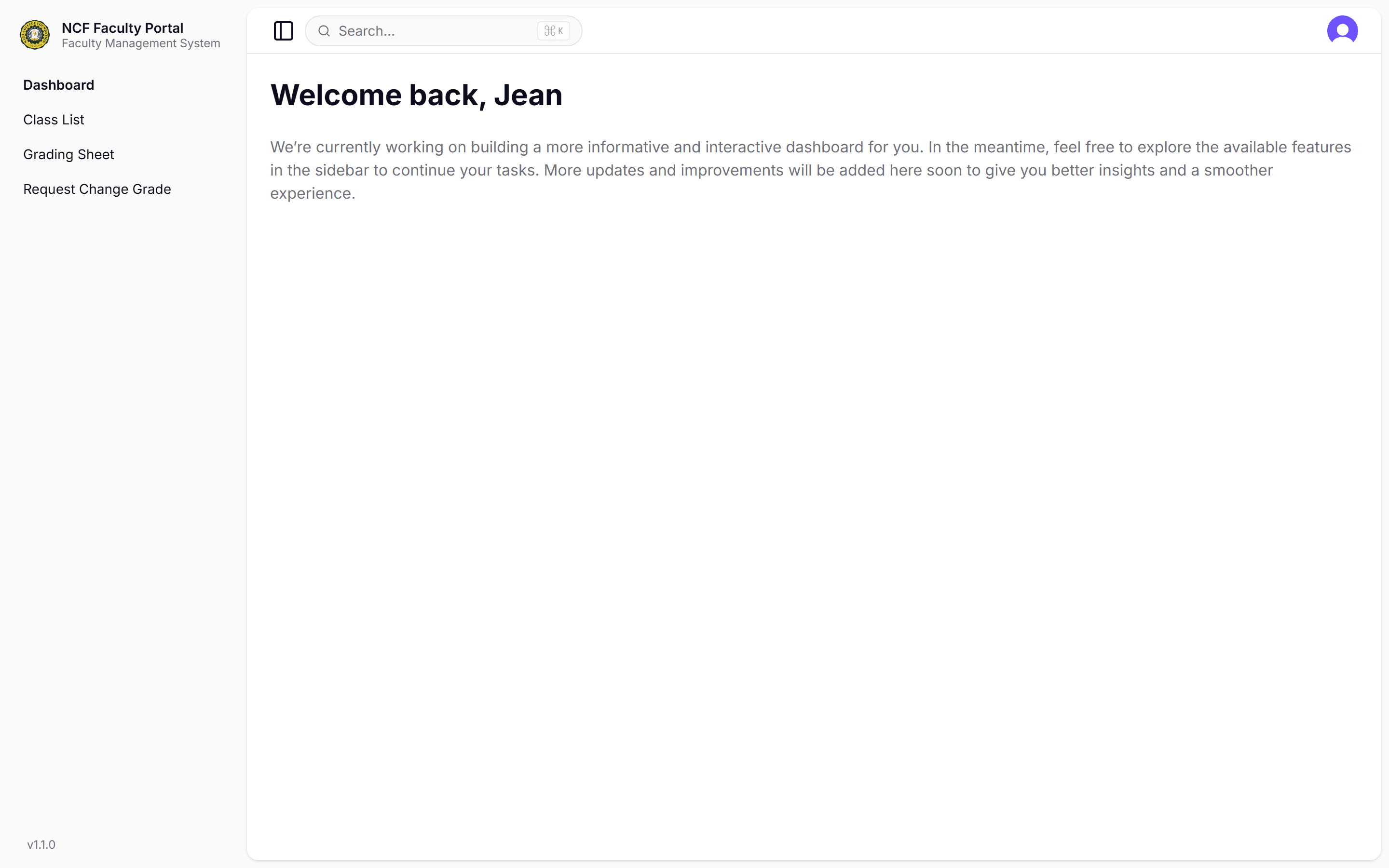
Interface: Sign In & Navigate to Class List
Select Academic Period & Class Code
Choose your target Academic Period (e.g. 26-1 for 1st Semester 2026-2027) from the Period dropdown. Select the specific course offering from the Class Code dropdown (e.g. C22 - Purposive Communication). Click 'Search' to fetch the active student roster.
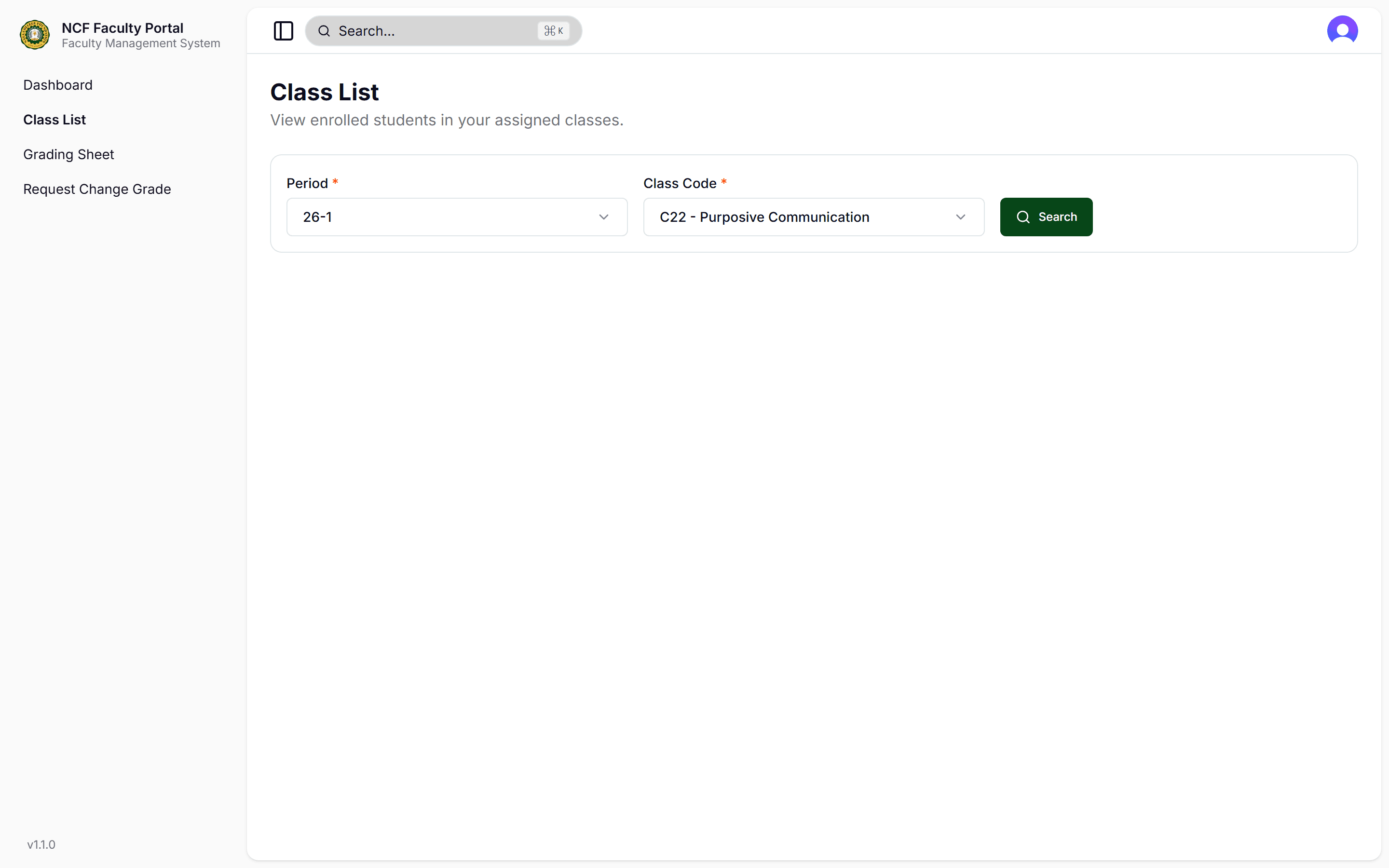
Interface: Select Academic Period & Class Code
Inspect Student Masterlist & Attendance Roster
Review the tabular student roster displaying Sequence Number (#), Student ID Number, Full Legal Name (Last, First, Middle), Gender, Degree Program/Course, Year Level, LRN, Mobile Number, Institutional GBox Email, and Drop Remarks.
Export Printable Attendance & Grading Roster
Click 'Export to PDF' in the toolbar to download an official formatted Class Roster (available in Portrait or Landscape orientation) featuring university headers, faculty details, and student attendance columns.