
How to Access Your Student Portal & Reset Password
Step-by-step walkthrough for signing into your student portal account, authenticating via institutional email or Student ID, setting up self-service password recovery, and navigating the authenticated student dashboard.
Before You Begin (Prerequisites)
- Official Student ID Number or Institutional Email (@gbox.ncf.edu.ph)
- Active Portal Password
- Access to Registered Email Inbox (for OTP Password Reset)
Step-by-Step Instructions
Access the Student Portal Landing Page
Open the official Student Portal URL (https://student-portal.sims.ncf.edu.ph) in any modern web browser (Chrome, Edge, Firefox, Safari). You will see the official sign-in card and portal features.
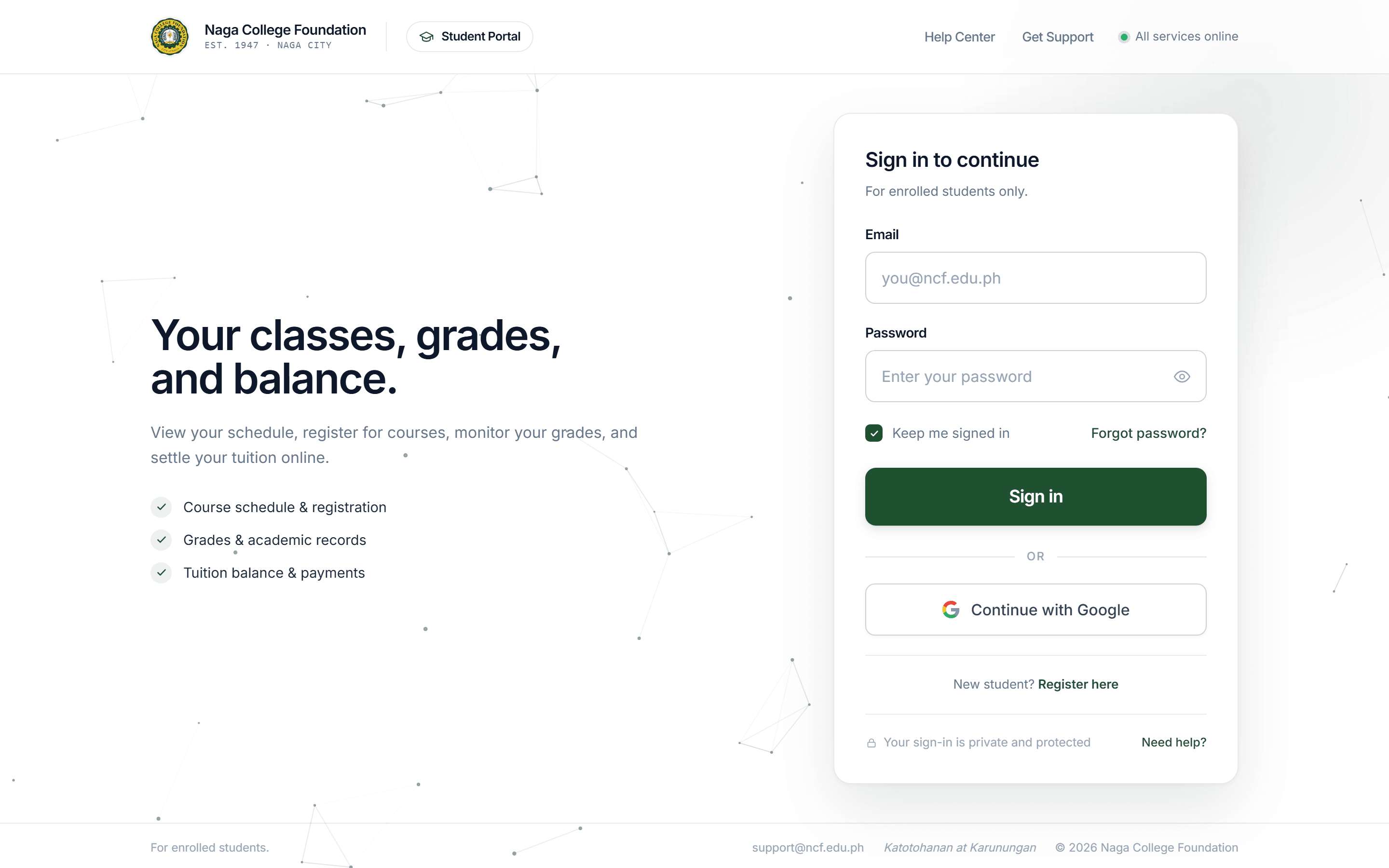
Interface: Access the Student Portal Landing Page
Sign In with Institutional Credentials
Enter your official institutional email (e.g. user@gbox.ncf.edu.ph) or your permanent Student ID number in the identifier field, followed by your portal password. Click 'Sign In'. You may also click 'Continue with Google' if your institutional Google Workspace account is linked.
Self-Service Password Reset (If Forgotten)
If you cannot recall your password, click 'Forgot Password?' below the password input. Enter your registered institutional email (@gbox.ncf.edu.ph) to receive a 6-digit verification code (OTP), type the code in the prompt, and set a new secure password containing at least 8 characters.
Explore the Authenticated Student Dashboard
Upon successful sign-in, you are redirected to your personalized Student Dashboard. From here, you can inspect your active class schedules, view term grades, check tuition statement of account, and access self-enrollment tools.
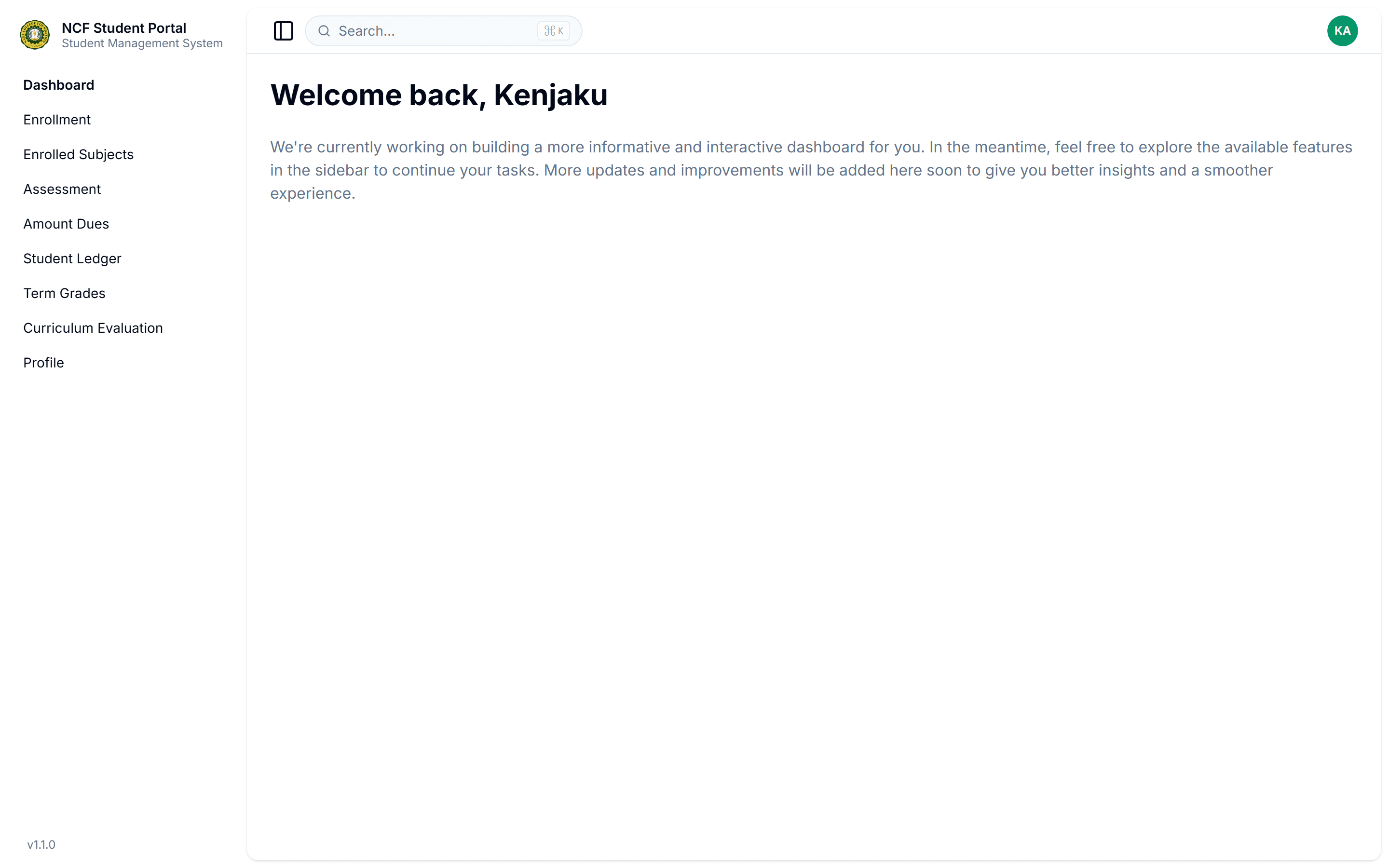
Interface: Explore the Authenticated Student Dashboard